Jump ahead
In this article, you will learn how to view, sign, and submit documents electronically for your loved one's services. If you have any questions, please contact your funeral director.
Get started
To begin, access your document(s) through the provided email link or QR code.
Email link
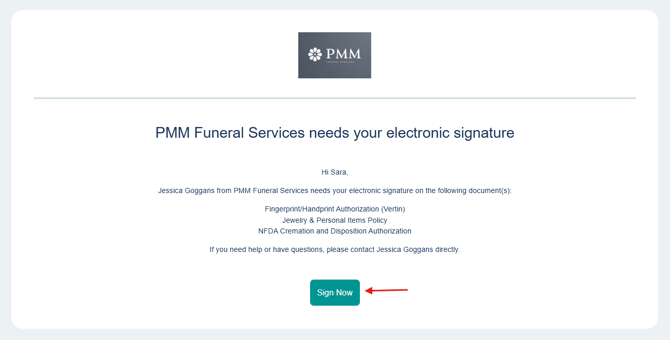
If you are signing online, you will receive an email requesting electronic signatures.
Open the email and click Sign Now.
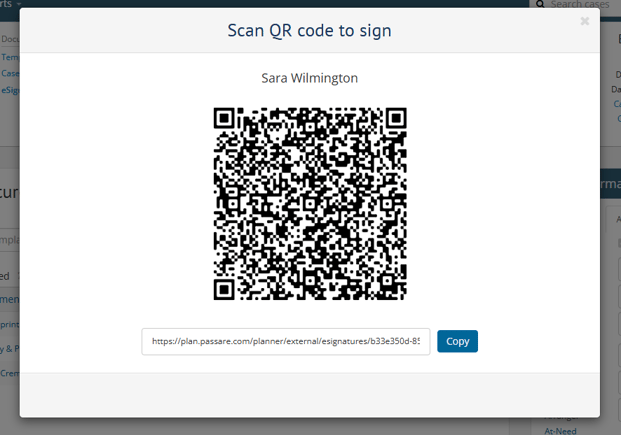
QR code
If you are signing in person, your funeral director will provide a QR code for you to scan with your mobile device.
Links will expire! If you receive more than one email about signing documents, be sure to click the most recent link.
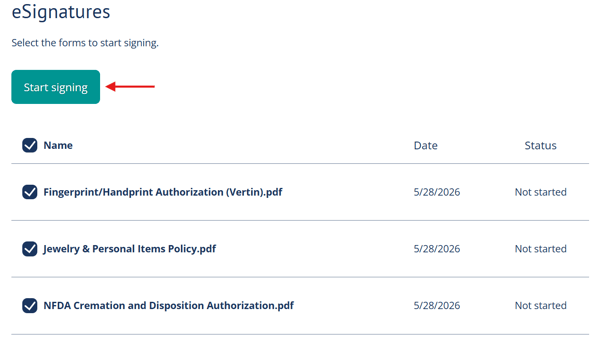
Both options direct you to the Planning Center, where your forms are stored.
Use the checkboxes to select which forms you'd like to sign. Then, click Start signing.
Next, draw or type to create your signature and initials.
Click Use signature to continue.
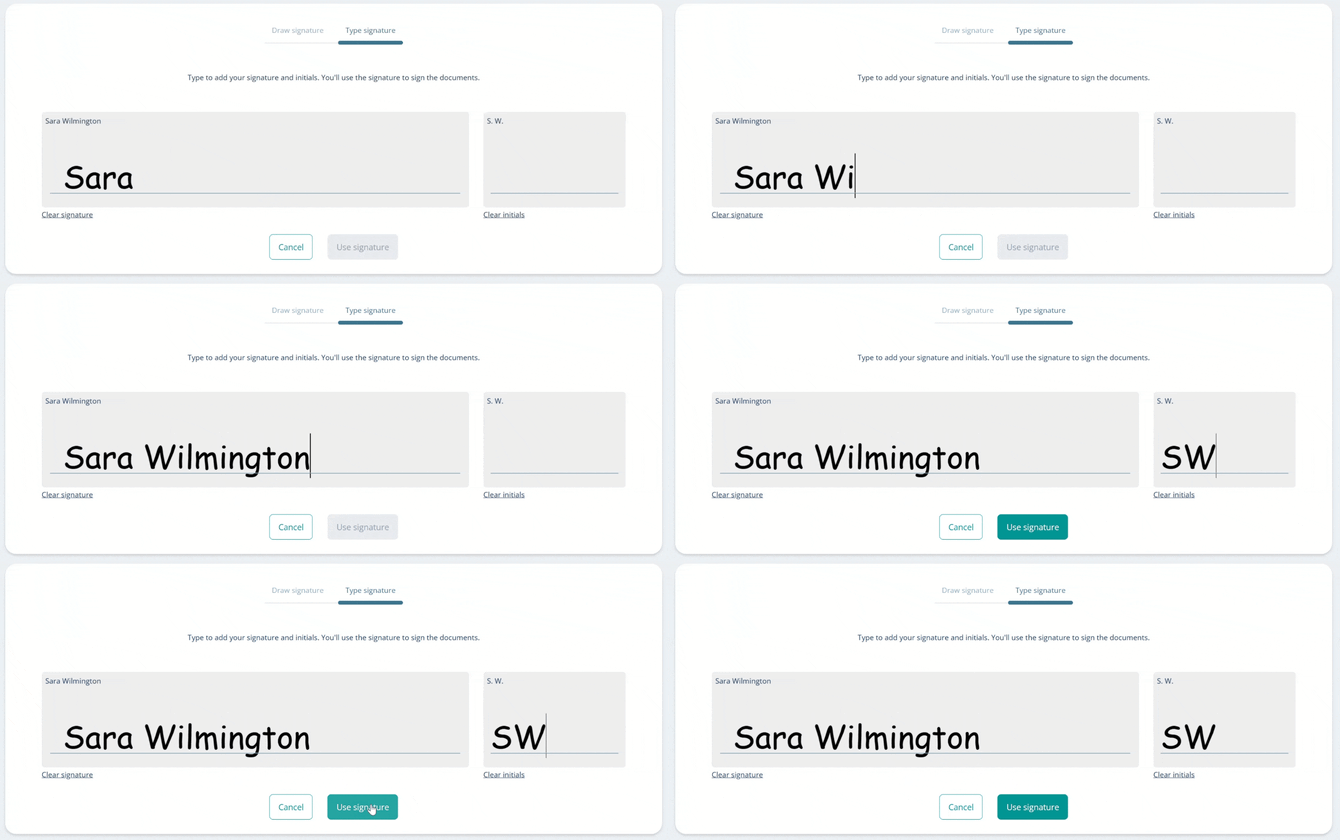
This step does not sign any documents but only creates your signature for later use.
Electronic signatures
Scroll through to complete the document.
You can type in fields, select checkboxes, and click to add your signature.
.gif?width=670&height=285&name=chrome-capture-2026-05-28%20(1).gif)
Required fields are red. Optional fields are yellow (signatures) or gray (other fields).
A counter in the top-left corner shows how many required fields remain on the document.
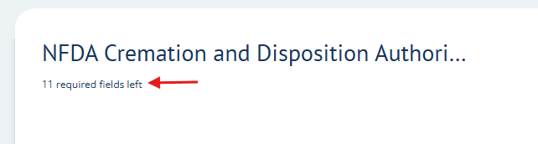
If you're signing multiple documents, click Next to view and sign the others.
.gif?width=670&height=112&name=chrome-capture-2026-05-29%20(1).gif)
Once all documents are signed, click Finish.

Finish signing
Read the Terms and Conditions and check the box to agree to them.
Click Finish signing to submit the documents.
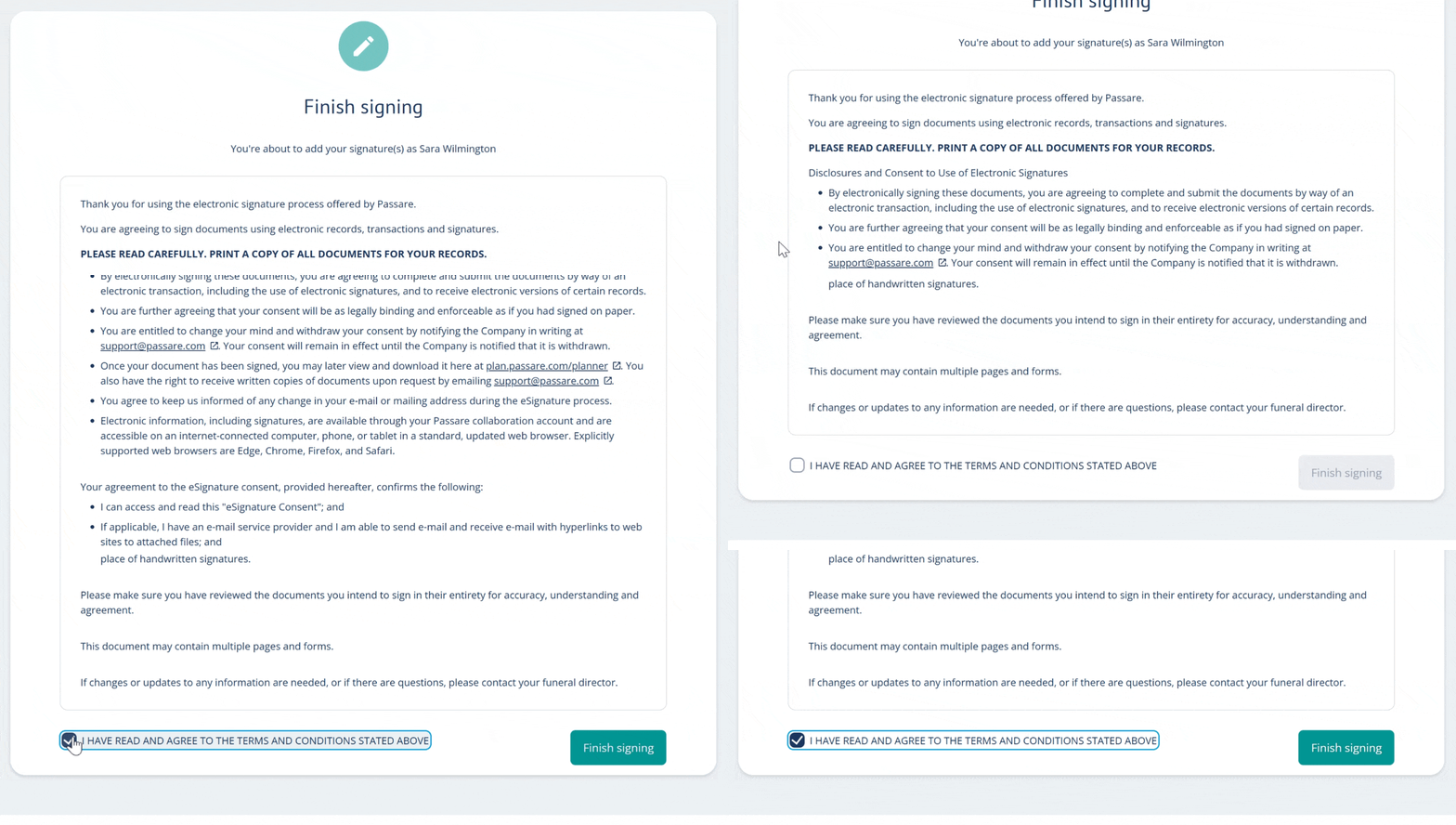
As soon as forms are submitted, your funeral director will be notified.
Be on the lookout for a confirmation email with copies of your documents. You can also access the documents in Planning Center by clicking Sign in.
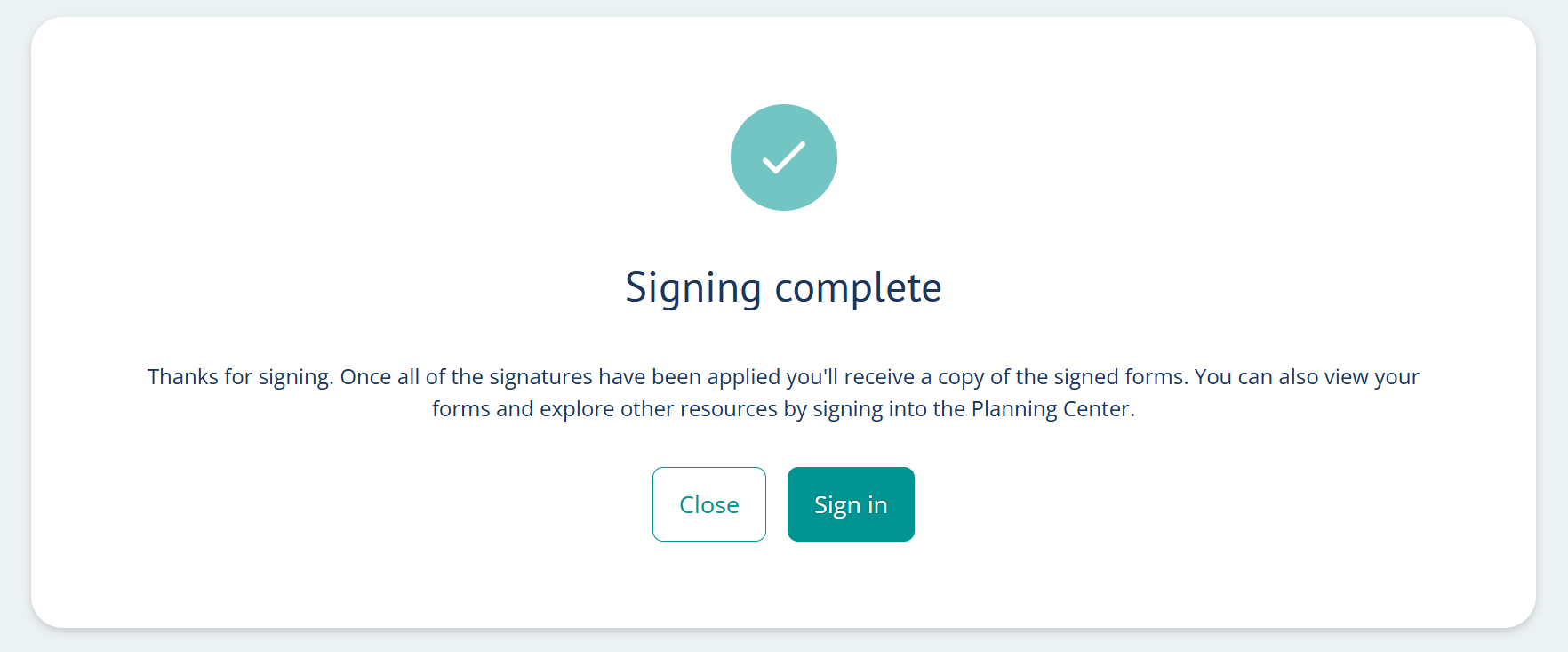
If you need any help with electronic signatures, please contact the funeral home.